
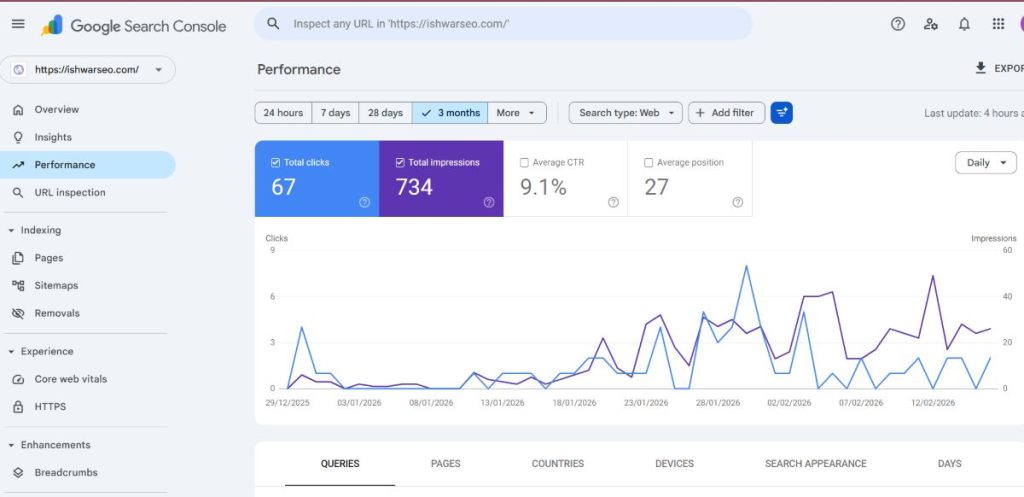
How to Check Google Search Console On Website
Google Search Console (GSC) is a free tool from Google that helps you understand how your website appears in Google Search—and what you can do to improve it. If you write blogs, run a business site, or offer SEO services, GSC is one of the most important tools to check regularly because it shows real data directly from Google.
In this article, you’ll learn:
- How to set up and verify Google Search Console
- How to check performance (clicks, impressions, CTR, position)
- How to find indexing problems and fix them
- How to submit a sitemap properly
- How to inspect a URL and request indexing
- How to check Core Web Vitals, mobile usability, and security issues
- Practical examples so you can apply it immediately
1) What is Google Search Console?
Google Search Console is Google’s official dashboard for website owners. It shows:
- Which keywords your pages are showing for
- How many people see and click your pages
- Which pages are indexed (or not indexed)
- Technical issues affecting ranking (speed, mobile, indexing, errors)
- Backlink and internal link data
- Sitemaps and crawling info
Think of it like Google’s “health report + performance report” for your website.
2) Before You Start: What You Need
To use GSC smoothly, you need:
- A Google account (Gmail)
- Access to your domain or website files (WordPress admin, hosting panel, DNS, etc.)
- Your website URL (example: https://example.com)
3) How to Add Your Website to Google Search Console
Step 1: Open Google Search Console
Go to Google Search Console and sign in with your Google account.
Step 2: Add a Property (Two Options)
You’ll see two property types:
Option A: Domain property (Recommended)
- Covers all versions of your site:
- http + https
- www + non-www
- subdomains (blog.example.com, etc.)
- http + https
- Requires DNS verification (adding a record in your domain settings)
Option B: URL prefix property
- Covers only one exact version (example: only https://www.example.com)
- Easier verification options like HTML file, meta tag, Google Analytics, Google Tag Manager
If you’re serious about SEO, choose Domain property. It’s cleaner and avoids missing data.
4) How to Verify Google Search Console (Verification Methods)
Google must confirm that you own the site. Here are common verification methods:
Method 1: DNS (Best for Domain Property)
You’ll copy a TXT record from GSC and paste it into your domain DNS settings (e.g., Cloudflare, Namecheap, GoDaddy).
Example:
- GSC gives something like:
google-site-verification=AbCdEf12345… - You add it as a TXT record in DNS.
- Wait a few minutes (sometimes up to 24 hours) and click Verify.
Method 2: HTML Meta Tag (Popular for WordPress)
GSC gives you a <meta> tag.
You paste it into your website’s header.
WordPress example:
- Use an SEO plugin (Rank Math / Yoast) → Webmaster Tools → paste the verification code.
Method 3: HTML File Upload
GSC gives you a file like google12345abc.html.
Upload it to your website root folder using hosting file manager or FTP, then verify.
Method 4: Google Analytics / Tag Manager
If your site already has GA4 or GTM set up with proper permissions, verification can be automatic.
5) What to Check First in Google Search Console
After verification, don’t get overwhelmed. Start with these 5 areas:
- Performance
- Pages (Indexing)
- Sitemaps
- URL Inspection
- Enhancements (Core Web Vitals, Mobile, etc.)
Let’s go one by one.
6) How to Check Performance in Google Search Console
Where to go:
Search results → Performance
This section shows how your site performs in Google Search.
You’ll see four main metrics:
- Total clicks: how many people clicked your site from Google
- Total impressions: how many times your site appeared in search results
- Average CTR: click-through rate (clicks ÷ impressions)
- Average position: your average ranking position
How to read it (Simple example)
Imagine you have a blog post titled:
“How to write SEO-friendly content”
In Performance, you see:
- Impressions: 10,000
- Clicks: 200
- CTR: 2%
- Avg position: 12
Meaning:
- People are seeing your page a lot (good)
- It’s ranking around page 2 (position 12)
- CTR is low because it’s not in top results yet
What to do with this data
Improve CTR:
- Rewrite the title to be more specific
- Make the meta description clear and attractive
- Add numbers, benefits, or a strong promise
Improve position:
- Update content depth and quality
- Add internal links
- Add relevant FAQ section
- Improve page speed and mobile usability
How to check which keywords you’re getting impressions for
In Performance, scroll down:
- Click Queries
- You’ll see keywords that trigger your site
Example:
Queries show:
- “seo content writing” → impressions 3,000 → clicks 20
- “seo friendly article format” → impressions 500 → clicks 15
This tells you which topics Google thinks your page is relevant to.
7) How to Check Which Pages Are Performing Best
In the same Performance section:
- Click Pages tab
You’ll see which pages get the most clicks and impressions.
Example:
- /blog/seo-friendly-content/ → 120 clicks
- /blog/keyword-research-guide/ → 60 clicks
Now you can focus on improving your top pages first because small improvements on already-performing pages can boost results faster.
8) How to Check Indexing Status (Pages Report)
Where to go:
Indexing → Pages
This shows which pages are indexed and which are not.
You’ll generally see categories like:
- Indexed
- Not indexed
- Excluded
- Error
Common reasons pages aren’t indexed
Here are common status messages you might see:
1) “Crawled – currently not indexed”
Google crawled it but decided not to index it yet.
Common causes:
- Thin or low-value content
- Similar to another page (duplicate-ish)
- Weak internal linking
Fix ideas:
- Improve content depth
- Add unique value (examples, visuals, FAQ)
- Add internal links from relevant pages
- Request indexing after updates
2) “Discovered – currently not indexed”
Google knows the page exists but hasn’t crawled it yet.
Fix ideas:
- Ensure sitemap is submitted
- Improve internal links to that page
- Make sure the server is fast and stable
3) “Duplicate, Google chose different canonical”
Google thinks another page is the main version.
Fix ideas:
- Check canonical tag
- Avoid publishing multiple versions of the same content
- Make sure only one URL is used (www vs non-www, http vs https)
4) “Blocked by robots.txt”
Your robots.txt is preventing Google from crawling.
Fix ideas:
- Check your robots.txt
- Remove incorrect “Disallow” rules
- In WordPress, check if “Discourage search engines” is enabled (it shouldn’t be)
9) How to Inspect a URL in Google Search Console (Most Useful Feature)
Where to go:
At the top search bar: URL Inspection
Paste any page URL and press enter.
You’ll see:
- Is the URL on Google?
- Indexing status
- Canonical URL chosen by Google
- Mobile usability
- Crawled page details
- Last crawl date
Example:
You publish:
https://example.com/blog/seo-reporting-tools
In URL Inspection it shows:
- “URL is not on Google”
- Reason: “Crawled – currently not indexed”
What you do:
- Update the article (add more depth, FAQ, internal links)
- Click Request Indexing
- Wait and check back later (no need to spam it daily)
10) How to Submit Your Sitemap in GSC
A sitemap helps Google discover your pages faster.
Where to go:
Indexing → Sitemaps
What to submit
Most sites use:
- sitemap.xml
- or for WordPress with Rank Math/Yoast:
- sitemap_index.xml
- sitemap_index.xml
Example:
If your website is https://example.com/, you submit:
https://example.com/sitemap_index.xml
After submitting, GSC will show:
- Status: Success
- Discovered URLs count
If sitemap shows errors
Common issues:
- sitemap URL returns 404
- blocked by robots.txt
- redirect problems
- wrong format
Fix those, then resubmit.
11) How to Check Core Web Vitals (Speed & User Experience)
Where to go:
Experience → Core Web Vitals
This section shows whether your pages are passing Google’s user experience signals, especially:
- Loading performance
- Interactivity
- Layout stability
You’ll usually see:
- Good
- Needs improvement
- Poor
Example fix actions:
- Compress images
- Use caching plugin (WordPress)
- Reduce heavy scripts
- Use a good hosting plan
- Avoid massive sliders and animations


12) How to Check Mobile Usability
Where to go:
Experience → Mobile Usability (may appear depending on your property)
If there are issues, you might see:
- Text too small
- Clickable elements too close
- Content wider than screen
Fix actions:
- Use responsive theme
- Avoid huge tables on mobile
- Ensure font size and spacing are readable
13) How to Check Manual Actions and Security Issues
These are important because they can destroy rankings.
Manual Actions
Security & Manual Actions → Manual actions
If Google penalizes your site, it shows here.
Most sites show: No issues detected (good).
Security Issues
Security & Manual Actions → Security issues
This warns about:
- Malware
- Hacked content
- Phishing pages
If anything appears here, treat it as urgent:
- Clean the site
- Update plugins/themes
- Change passwords
- Request review after fixing
14) How to Check Links (Backlinks + Internal Links)
Where to go:
Links
You’ll find:
- Top linked pages (pages receiving backlinks)
- Top linking sites
- Top linking text (anchor text)
- Internal links (how pages link to each other)
Example use:
If your important service page has low internal links, add internal links from blog posts to that service page. This often helps ranking and crawling.
15) Simple Weekly Routine: What to Check (So You Don’t Get Confused)
Here’s a realistic routine:
Every week (10–15 minutes)
- Performance → check clicks/impressions trend
- Pages (Indexing) → see if new errors appeared
- URL Inspection → check a few important pages
Every month
- Check keywords with high impressions but low clicks (improve titles)
- Check pages with declining clicks (update content)
- Submit updated sitemap if site structure changed
- Check Core Web Vitals for new “poor” URLs
16) Real Example: How GSC Helps You Improve an Article
Let’s say you wrote an article:
“How to Optimize Blog Posts for Google”
In GSC Performance:
- Query: “optimize blog post for seo”
- Impressions: 8,000
- Clicks: 60
- CTR: 0.75%
- Position: 9.8
What this means:
You’re almost on the first page, but CTR is low.
Actions:
- Change title from:
“How to Optimize Blog Posts for Google”
to:
“How to Optimize Blog Posts for SEO (Checklist + Example)” - Add a short FAQ section
- Add internal links from other blog posts to this article
- Improve featured snippet chance by adding a checklist
After 2–4 weeks, you may see:
- CTR increase
- clicks increase
- position improve slightly
This is exactly how SEO improvement works in the real world: small changes based on real data.
17) Common Mistakes People Make With Search Console
- Only checking clicks, not impressions
Impressions show potential. Even without clicks, impressions mean Google is testing your pages. - Panic when ranking changes daily
Fluctuations are normal. Look at trends over 28 days. - Requesting indexing too often
Request indexing after meaningful updates, not every day. - Ignoring indexing statuses
If a page isn’t indexed, it can’t rank. - Not submitting a sitemap
Especially important for new websites.
18) FAQs
How long does it take for GSC to show data?
Usually 1–3 days after setup, but it depends on crawl activity.
Can I use Search Console without a sitemap?
Yes, but sitemap helps Google discover pages faster.
Why does my page show “Crawled – currently not indexed”?
Often due to low content value, duplication, or weak internal linking. Improve content and request indexing.
Which is better: Domain or URL prefix property?
Domain property is better for complete tracking across versions.
Does Search Console improve ranking automatically?
No. It shows data and issues. You improve ranking by fixing problems and optimizing content based on insights.
Conclusion
Google Search Console is one of the best tools for checking your website’s SEO performance because it gives you direct feedback from Google. Once your site is verified, focus on the basics: Performance data, Indexing status, URL Inspection, Sitemap submission, and user experience reports. Then use what you learn to update your pages, improve titles, fix technical problems, and build better internal linking.
If you want, tell me your website link (or share a screenshot of your GSC reports), and I’ll guide you exactly which sections to check first and what to fix based on the data.